Canvas Studio
Canvas Studio is the tool for videos at Konstfack
 The tool is available to teachers, course administrators, and students via the global navigation menu in Canvas. It replaces older tools such as Kaltura/Play for video content at Konstfack. To the left of this text, you can see the icon for Canvas Studio.
Canvas Studio makes it easy for teachers and course administrators to create, manage, and share video content. The tool also supports accessibility regulations and offers automatic captioning that can be reviewed and edited.
With Canvas Studio, you can:
• upload and save videos
• record video using a webcam or screen capture
• export recordings
• share videos and video collections with colleagues
• create and edit captions
• create interactive quizzes and comments
• create video assignments for students
• embed videos in Canvas courses
Create material in Canvas Studio
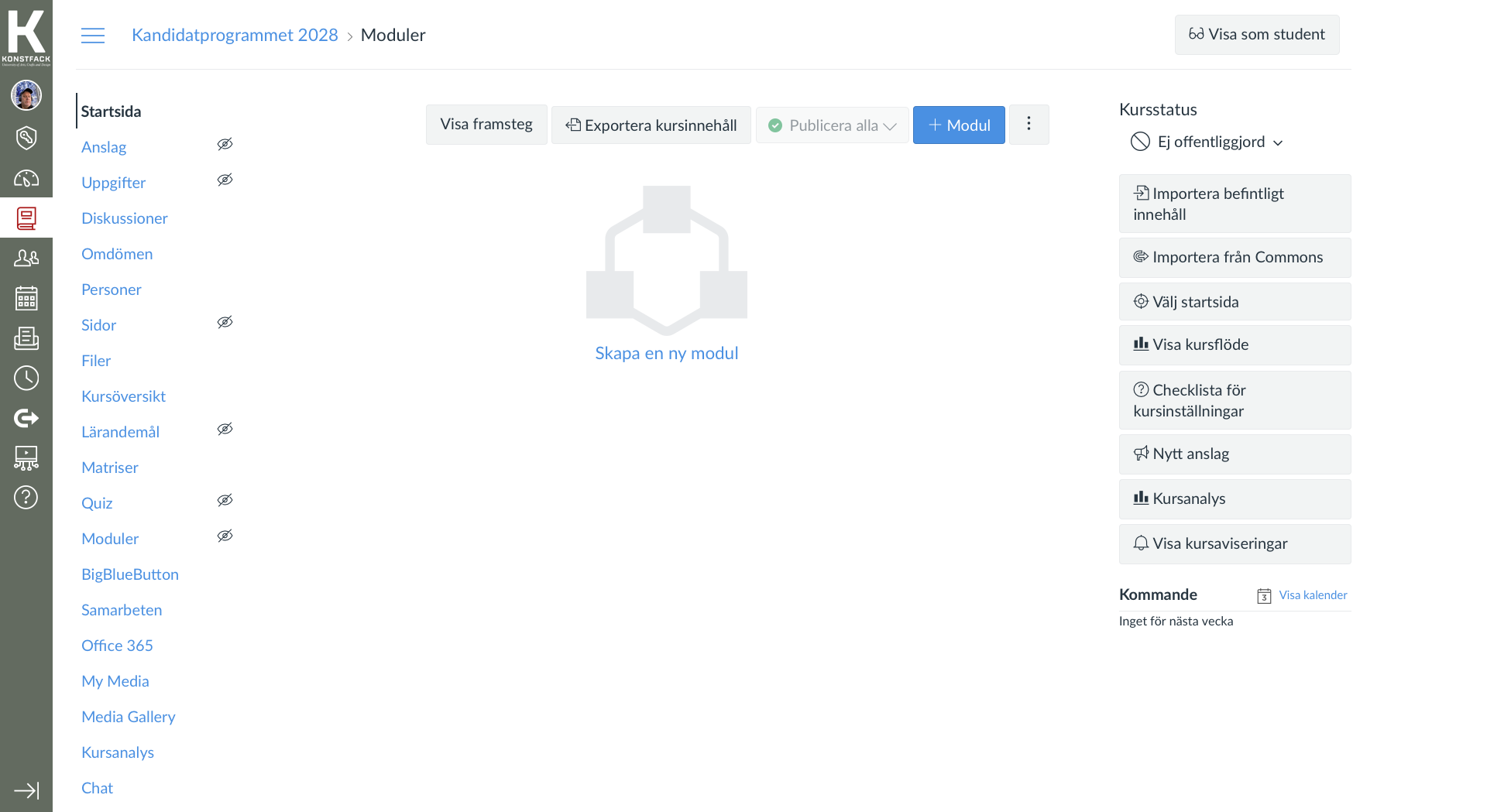
Canvas Studio can be accessed via the icon in the global navigation menu. Look for the icon in the dark gray menu, second from the bottom.
How to upload or record videos
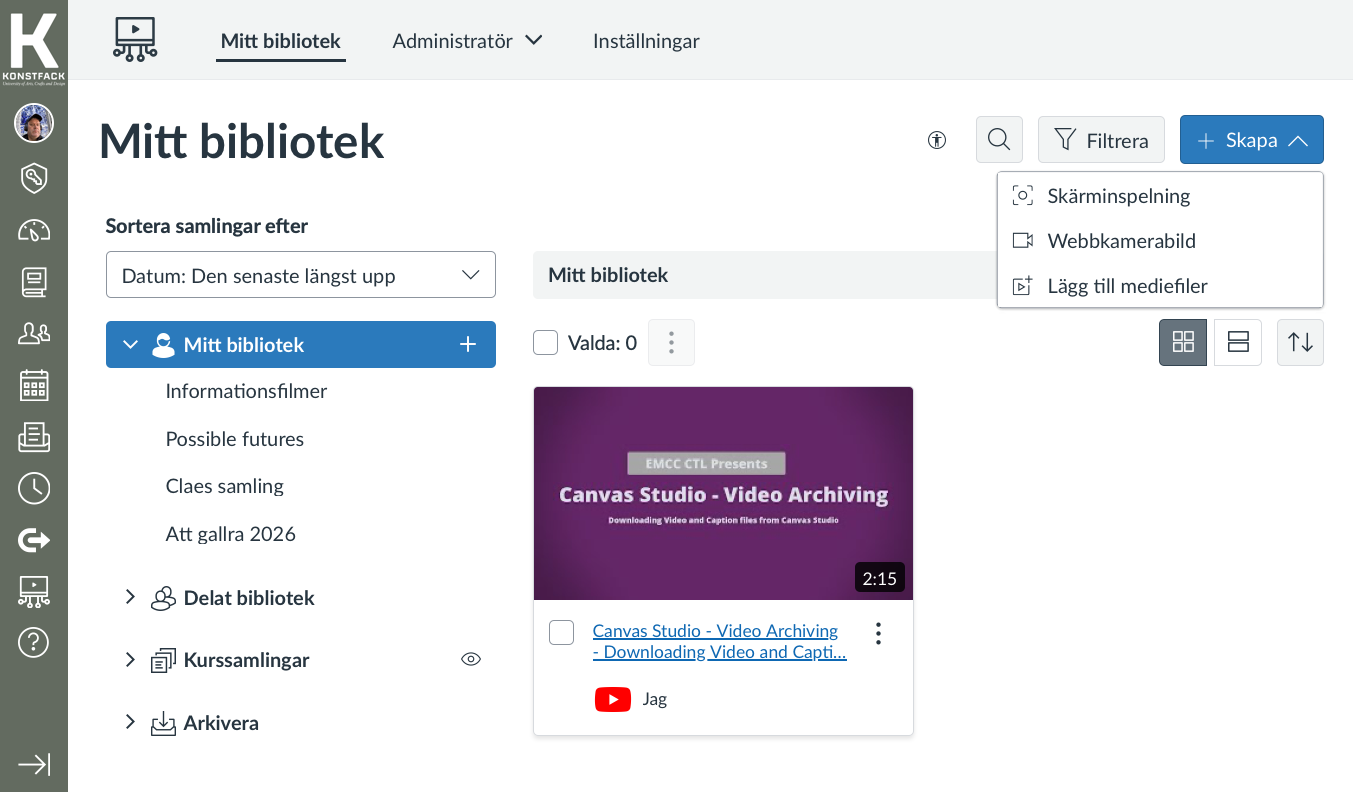
Uploading existing videos
• Local files: Click "Create"/"Add Media" or drag and drop files (e.g., MP4, MOV)—up to 10 GB in size—directly into your web browser.
• External links: Paste a link from YouTube or Vimeo to embed the video without consuming your storage space
Recording directly within the platform
Click the record button in the library or text editor to choose between:
• Studio Capture: Webcam recording directly in the browser.
• Skärminspelning:
Requires a small add-on program and allows you to record just the screen, just the webcam, or both simultaneously (picture-in-picture). After uploading or recording, the video is saved to your library.
Who can view my videos?
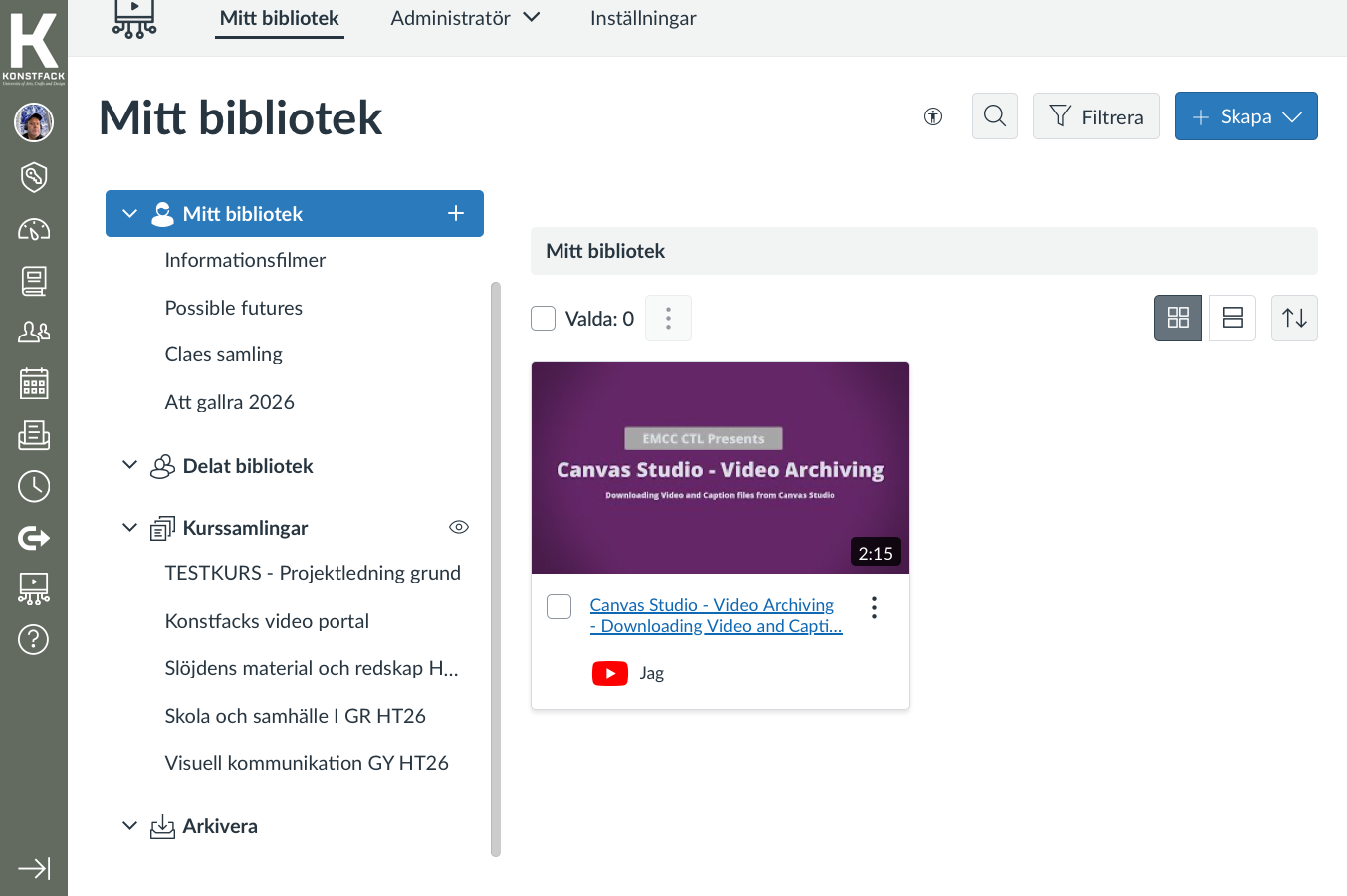
My Library
- What it is: Your personal library of uploaded or recorded videos, audio files, and other media.
- Who can see it: Only you (and super-administrators).
- What you can do: Here, you can upload new material, record your screen or use your webcam, create subtitles, or build custom collections to organize your files.
Shared Library
- What it is: Your personal library of uploaded or recorded videos, audio files, and media
- Who can see it: Only you (and super-administrators).
- What you can do: Here, you can upload new material, record your screen or use your webcam, create subtitles, or build custom collections to organize your files.
Course Collections
- What it is: All video material that has been added, embedded, or used within a specific Canvas course.
- What you can do: All material is automatically gathered here whenever it is embedded into a course page or discussion. Please note that media within a course collection is linked to that specific course; it cannot be moved directly to "My Library"—it must be uploaded again.
Archive
Use this feature to declutter and organize your video library—separating current videos from older ones—without permanently deleting them.
How to embedd a video in your course
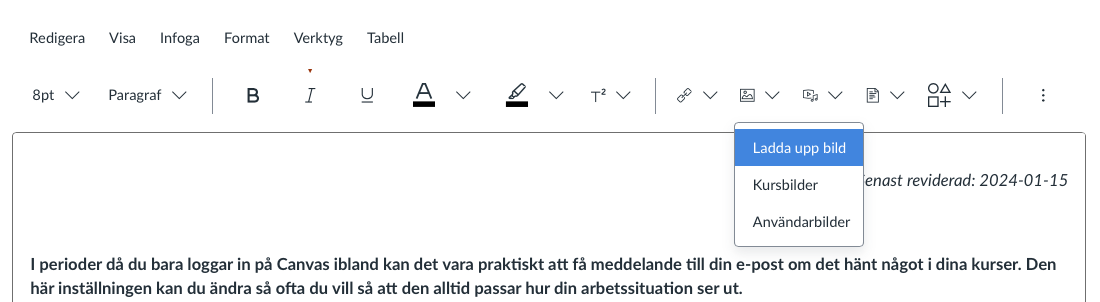
- Open the relevant course in Canvas.
- Create or edit a page, assignment, discussion, or other content using the editor.
- In the menu, click the icon that looks like a play button with a musical note to embed a video.
- Select an existing video or upload a new one.
- Click "Embed Media" and choose any desired display options.
- Save and publish the content.
The video will then appear directly at the location where it was embedded.
Canvas Studio guider
Full guide in Canvas Studio (på svenska)
Full guide in i Canvas Studio (på engelska)